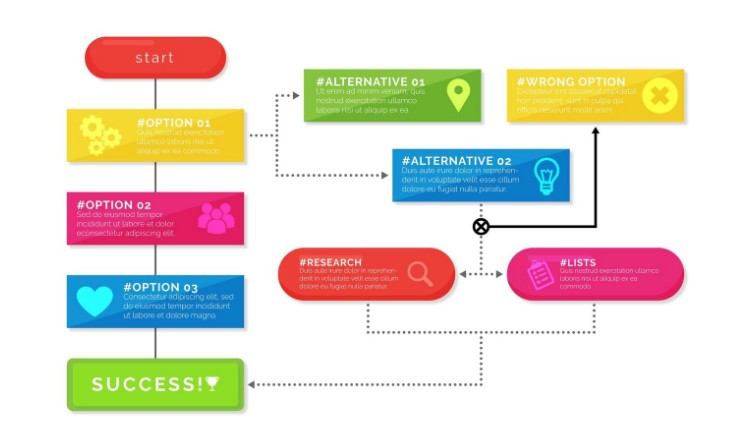
Excel Flowchart Template Free
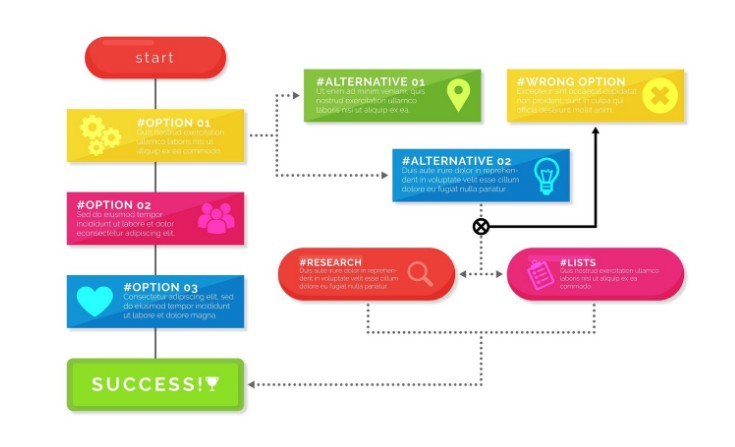
Flowcharts are one of the most powerful tools for visualizing processes, workflows, and decision-making. They are widely used in project management, business analysis, software development, and even education. While there are many paid flowchart-making tools available, did you know that you can create professional flowcharts directly in Microsoft Excel using free templates?
In this article, we’ll explore:
✅ What is a flowchart?
✅ Benefits of using Excel for flowcharts
✅ How to access free Excel flowchart templates
✅ Step-by-step guide to creating flowcharts in Excel
✅ Best practices for professional results
What is a Flowchart?
A flowchart is a graphical representation of a process, showing the sequence of steps using shapes like rectangles, diamonds, and arrows.
👉 Example:
- A rectangle represents a process step.
- A diamond indicates a decision point.
- An arrow shows the flow direction.
Flowcharts make complex information easier to understand and communicate.
Why Use Excel for Flowcharts?
Most people think Excel is only for numbers, but it’s actually a versatile tool for diagrams and charts.
Benefits of Excel flowcharts:
- Free & Accessible – If you already have Excel, you don’t need extra software.
- Customizable – You can resize, color, and style shapes.
- Integration – Easily combine flowcharts with data tables and reports.
- Templates Available – Microsoft offers free pre-made templates.
- Saves Time – Templates help you create flowcharts quickly.
Free Excel Flowchart Templates
Here are some commonly used free Excel flowchart templates:
- Basic Process Flowchart Template
- Ideal for step-by-step workflows.
- Includes rectangles, diamonds, and arrows.
- Swimlane Flowchart Template
- Separates tasks by departments or teams.
- Useful for cross-functional processes.
- Decision Tree Flowchart Template
- Helps in choosing between alternatives.
- Great for project planning.
- Workflow Automation Flowchart Template
- Designed for IT, business automation, and HR processes.
- Shows sequential and parallel steps.
How to Access Free Flowchart Templates in Excel
Follow these steps:
- Open Excel → Go to File > New.
- In the search bar, type Flowchart.
- Browse through available templates (Process, Organization chart, Swimlane, etc.).
- Click Download or Create.
- Start editing shapes, text, and colors.
Step-by-Step Guide: Creating a Flowchart in Excel
Even without a template, you can build a flowchart manually.
Step 1: Enable Shapes
- Go to Insert > Illustrations > Shapes.
- Select rectangles, diamonds, or arrows.
Step 2: Draw Shapes
- Place rectangles for process steps.
- Use diamonds for decision points.
Step 3: Connect with Arrows
- Choose Line Arrows to connect shapes logically.
Step 4: Add Text
- Right-click → Add Text inside each shape.
Step 5: Format Your Flowchart
- Use colors to highlight important steps.
- Apply consistent fonts for readability.
👉 Example of a simple flowchart made in Excel:
Best Practices for Excel Flowcharts
To make your flowchart professional and easy to follow:
✔ Keep it simple – Avoid unnecessary shapes.
✔ Use consistent colors – Example: Blue for processes, Green for decisions.
✔ Add legends or labels – Helps readers understand flow direction.
✔ Align shapes properly – Use Excel’s Align & Distribute feature.
✔ Save as PDF or Image – For sharing outside Excel.
Advantages of Free Excel Flowchart Templates
- No extra cost – Included with Excel.
- Quick setup – Templates are ready-to-use.
- Easy customization – Adjust shapes, add company logos, change fonts.
- Time-saving – Focus on process, not design.
- Professional look – Clean and structured diagrams.
Limitations of Excel Flowcharts
While Excel is powerful, it has some drawbacks:
❌ Limited advanced features compared to tools like Lucidchart or Visio.
❌ Complex diagrams may be harder to manage.
❌ Not ideal for real-time collaboration.
👉 But for small to medium projects, Excel is more than enough.
Conclusion
Using Excel flowchart templates free of cost is a smart way to create professional diagrams without spending on expensive tools. Whether you need a basic process map, a decision tree, or a swimlane diagram, Excel has built-in shapes and templates to get the job done.
With a little customization—colors, alignment, and labels—you can create flowcharts that are not only functional but also visually appealing.
So next time you need to present a process or workflow, open Excel and try out the free flowchart templates—it might surprise you how powerful and simple it can be!
